


Change banner language and translations
Use the visitor's browser language or display one language to everyone.
1. Choose the default banner language
Open Translations. Default banner language controls what visitors see: Auto uses the browser language, while a selected language fixes the banner language.
2. Select the language to edit
Edit texts for language selects which language’s overrides you are editing; it does not set the visitor’s default language.
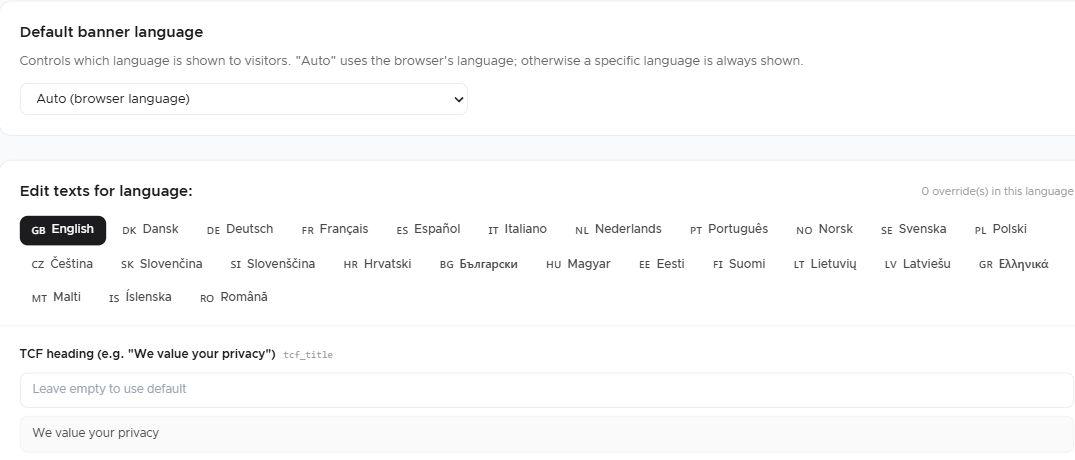
3. Edit the texts
Edit the relevant fields, preserve placeholders such as {n} and {partners}, and leave a field empty to use its default where the interface supports this. Some standardized TCF wording is not freely editable.
4. Save and test
Save, then test the published banner with the intended browser language and framework. Dashboard language is a separate setting under Profile. If the wrong language appears, see Troubleshoot an incorrect banner language.
Also check that screen readers announce the banner in the language it is actually shown in. A banner shown in English on a Danish page should be announced as English, including any text that falls back to another language. This is about identifying the banner’s language correctly; it does not require translating your website.
In an A/B test, text changes to version B do not affect version A, and how the banner language is selected is not something a test can change. See Create your first cookie banner A/B test.
Screenshots are edited, anonymized examples. Use your own website, banner and Passiro script.