


Customize the cookie settings button
Let visitors reopen the banner and change their choices after their first visit.
1. Choose the style
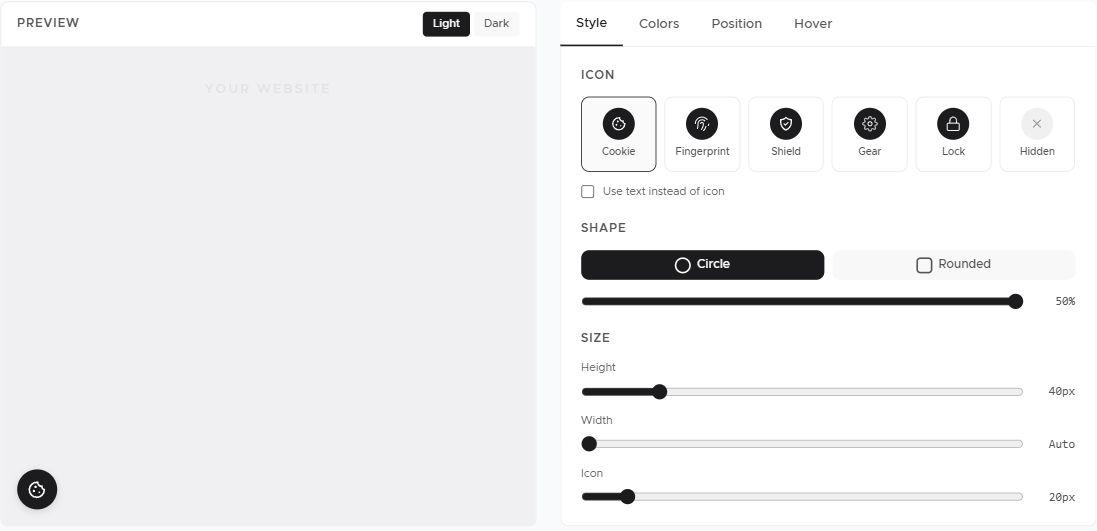
Open Button Design. In Style, select the icon or text treatment, shape and size. Use Colors and Hover for appearance.
2. Set the position
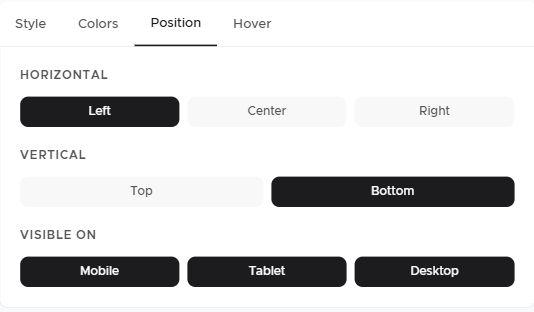
In Position, choose horizontal and vertical placement and check visibility on Mobile, Tablet and Desktop.
3. Save and test on the live website
Save your changes and test the button on the live website at each size. Confirm that it is reachable with a keyboard and by touch, that focus on it is clearly visible, that it is large enough to use comfortably, that it does not cover important controls and that it opens the consent choices.
If the button shows an icon without text, check with a screen reader that it is announced with a meaningful name, such as Cookie settings, and not only as a button.
4. Keep a way to reopen settings
If you choose Hidden, provide and test another supported way for visitors to reopen their settings, one that keyboard and screen-reader users can reach too. Do not hide the only working route for changing a previous choice. See Let visitors change or withdraw consent.
In the accessible banner version, focus returns to the cookie settings button when a visitor closes the reopened settings. Which domains have this version is explained in WCAG 2.2 AA and your Passiro cookie banner.
Screenshots are edited, anonymized examples. Use your own website, banner and Passiro script.