


Geo-targeting for countries and states
Create country, state and province banner choices, use one banner for several countries, and resolve assignment conflicts.
Use a specific location choice when visitors in a country, state or province need a different banner from the broader regional choice. These instructions apply to Smart geo-targeting. Multiple banners are included on every plan, with a limit of 25 banners per site.
Create or choose the banner
Open Banner Design, then My banners. Edit a suitable existing banner or choose New banner. Use Custom when creating a banner with your own location choices.
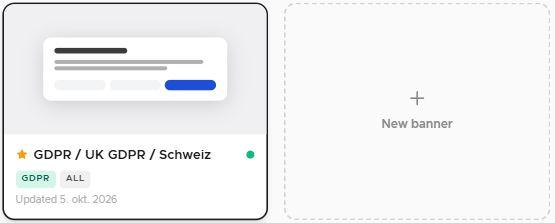
Give it a useful name and choose suitable consent settings. Customize the design while keeping the controls required for the locations it will cover. A banner name such as Germany banner does not assign Germany automatically.
Assign countries
For a new banner, choose Custom… in Show in regions and enter the country codes, for example DE, or JP, AU, NZ. Create the banner and make sure it is active. For an existing banner, add the country under Country and state overrides in Geolocation. Review every assignment there.
One banner can cover several countries. For example, one banner assigned to Japan, Australia and New Zealand takes priority over Rest of world in each of those countries. Selecting several countries does not reduce its priority.
Assign a state or province
In Country and state overrides, choose the country, then the supported state or province and the intended banner, and click Add override. Wait for Saved and check the resulting assignment and its status.
For example, a United States country choice covers its states, but an explicit California choice takes priority for California. A Canada country choice also covers Québec unless you add an explicit Québec choice. The regional Québec preset is not the same as an explicit province choice.
If the US state or Canadian province is unknown, a valid country choice can still apply. See Set up geo-targeting for the full priority and default rules.
Resolve conflicts and validation messages
A country choice can overlap a broader regional group. That is expected. Two different active banners cannot both have the same explicit country assignment, or the same explicit state or province assignment.
If Passiro reports a conflict, choose which banner should own that location and move or remove the competing assignment. Changing banner names or their display order does not resolve it.
If an assignment is rejected because required consent controls are missing, read the message and choose or adjust a suitable banner. A different design is allowed when the necessary controls are preserved. A Neutral label does not mean no banner or that geo-targeting is disabled; the banner’s actual consent settings still matter.
Save and test your choices
Overrides are saved when you add, move or remove them; changes to regional banners need Save Changes. Wait for Saved, then check the intended country or state and a nearby location that should retain the regional banner. For the preview and live checks, follow Test and troubleshoot geo-targeting.
Geo-targeting and language settings are separate. A Germany-specific banner can appear in English if your language settings select English for that visit.
A banner A/B test does not change this order: country, state and regional choices select the banner first, and only visitors who receive the tested opt-in banner can take part. Banners for other locations are not part of the test. End a running test before you add, move or remove an assignment that affects it. See Create your first cookie banner A/B test.
Screenshots are edited, anonymized examples. Use your own website, banner and Passiro script.