
Customize the cookie settings button
Let visitors reopen the banner and change their choices after their first visit.
1. Open Button Design
Select Button Design in the website's sidebar. Use a desktop-sized screen for the design editor.
2. Choose the appearance
In Style, choose an icon or Use text instead of icon. Adjust the shape and size. Use Colors to match your website while keeping the button easy to see.
3. Choose its position
Open Position. Select horizontal and vertical placement and the devices where it should be visible. Check Hover for the hover appearance.
4. Save and test
Click Save Changes. Make a consent choice on your website, then use the button to reopen the banner. Check that it remains accessible on mobile and does not cover important controls.
If you choose Hidden or hide the button on a device, make sure visitors still have an accessible way to reopen their consent settings.
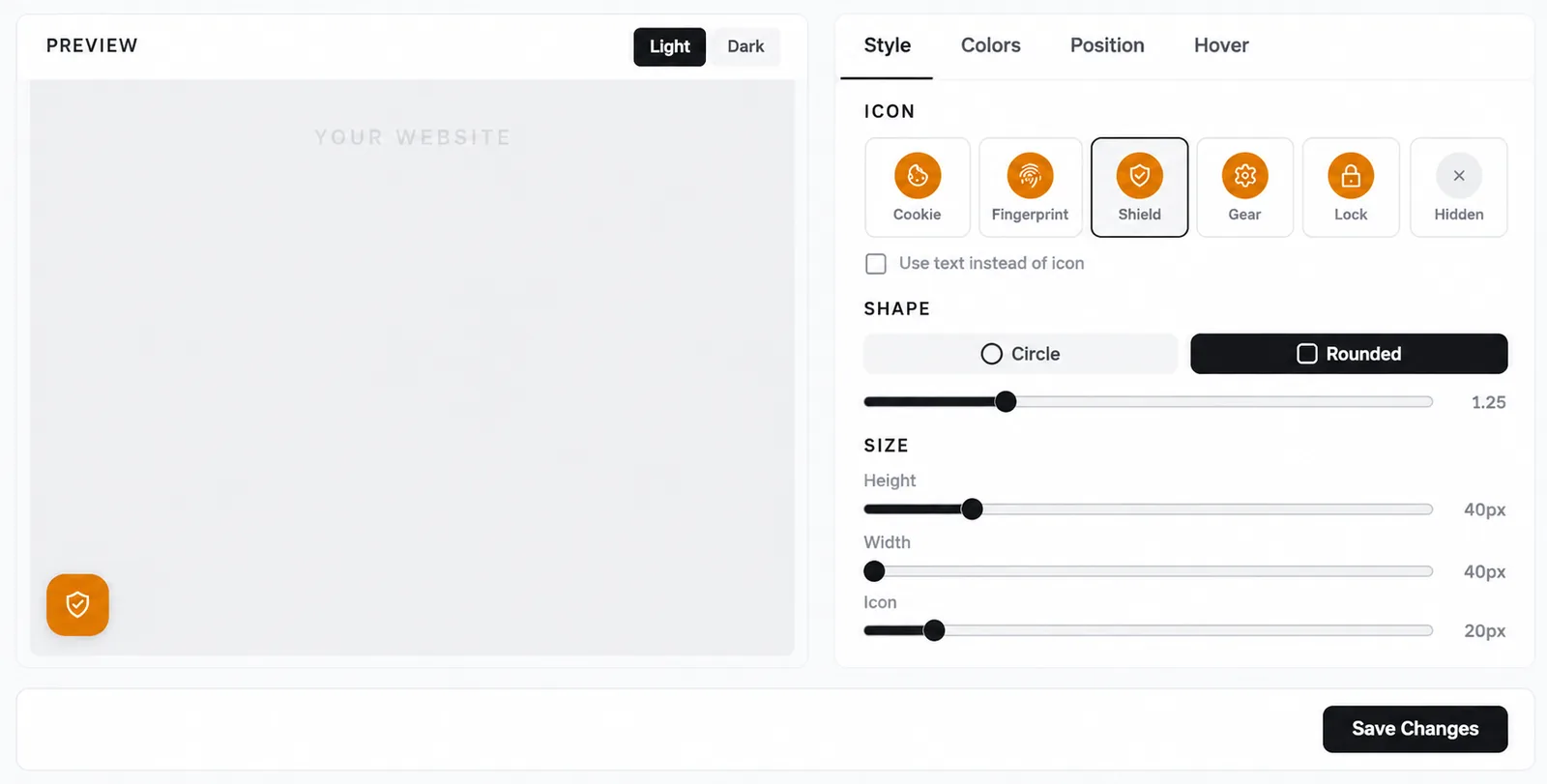
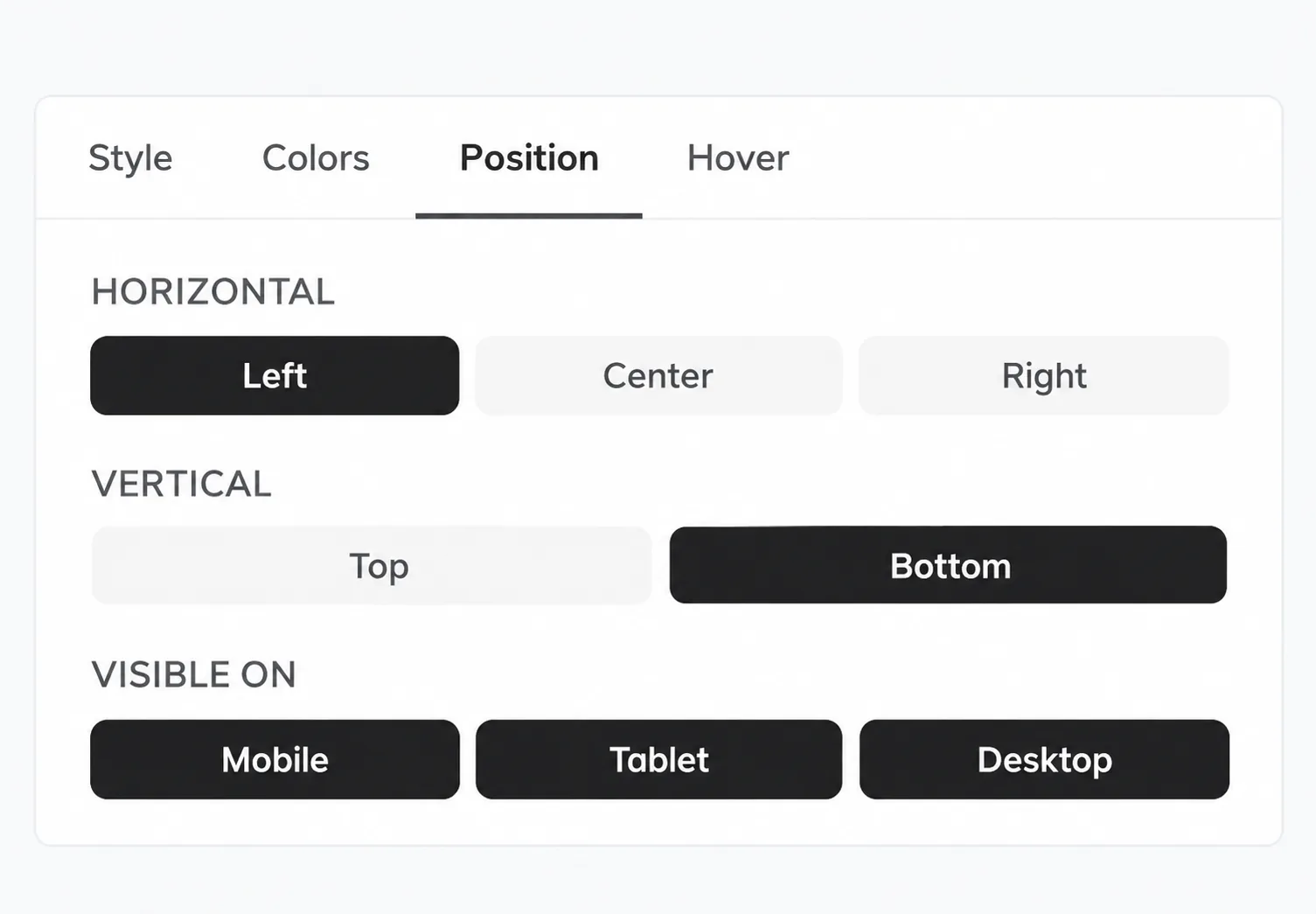
Screenshots are edited, anonymized examples. Use your own website, banner and Passiro script.