


Add your website to Passiro
Add your website so you can configure its cookie banner and find its Passiro script.
Before you start: Sign in to Passiro and have your website address ready.
1. Add the site
Open Dashboard and choose Add Site. Select the protocol, enter the website address and optionally add a label.
Each domain and subdomain you use with Passiro counts separately. For example, example.com and shop.example.com count as two domains. Pages such as example.com/about belong to the same domain and do not count separately. See How domains are counted.
2. Check and create it
Check the address before creating the site. Open the new site to access its settings.
3. Install the Passiro script
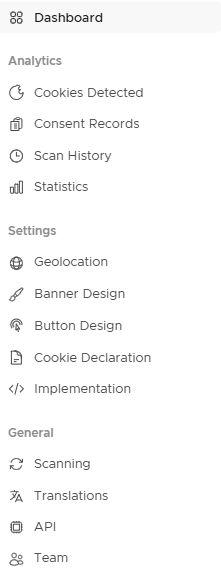
Adding a site does not install the consent script on your website. Continue with Implementation to copy the site-specific script, add it to your website and verify the installation.
4. Review the dashboard
The dashboard cards show the data available for the selected site; a new site may have no consent records yet.

Need help?
Already see your website? Open the existing entry instead of adding it again.
Next, follow Customize your cookie banner, then Install the Passiro script and test your cookie banner.
Screenshots are edited, anonymized examples. Use your own website, banner and Passiro script.