


Install the Passiro script and test your cookie banner
Install the Passiro script on your website, then check the installation.
Before you start: Add your site in Passiro. You need access to your website's HTML head or someone who can edit it for you.
1. Copy the Passiro script
Open your site → Implementation and copy the script shown for that site. Use the script copied from your own account.
The script has this format, with your site’s ID in place of YOUR_SITE_ID: <script src="https://cdn.passiro.com/passiro.js" data-site-id="YOUR_SITE_ID"></script>
The same script also runs banners that use IAB TCF; there is no separate TCF script. See Get started with IAB TCF 2.4 in Passiro.
2. Place it first in the head
Install it once as the first script in the page’s head, before analytics, advertising and tag-manager scripts. Do not add async or defer, or let an optimizer delay it.
3. Check Allowed Domains and publish
Check Allowed Domains for every hostname where you are testing. Publish the change and clear relevant page/CDN caches.
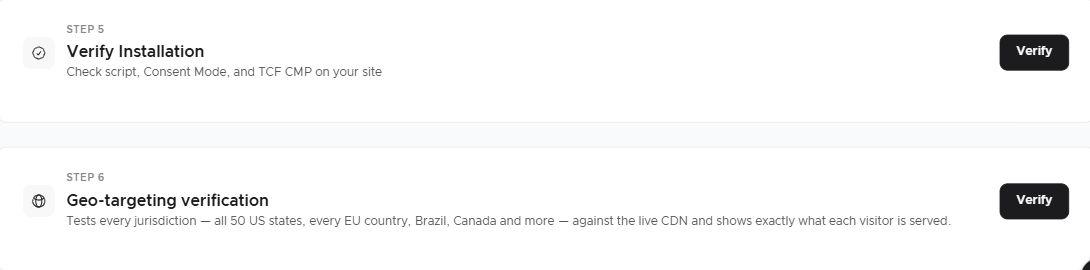
4. Verify the installation
Run Verify Installation, inspect each result and resolve failures. Run Test your geo-targeting separately; see Test and troubleshoot geo-targeting.
5. Test in the browser
Finally, test a fresh visit, rejection, acceptance and changing a previous choice on the published website. A successful automated check does not replace these browser tests.
Banner not appearing?
Work through Troubleshoot a banner that does not appear. Before launch, complete Complete your pre-launch consent check.
Technical guides
Screenshots are edited, anonymized examples. Use your own website, banner and Passiro script.