


Adjust your crawler settings
Control which pages Passiro scans and give slower pages more time to load.
1. Review the page limit
Open Scanning → Crawler Settings. Review Pages per scan and the plan’s applicable limit.
Pages per scan and domain count are different limits. A page such as example.com/about belongs to example.com. A subdomain such as shop.example.com counts separately when used with Passiro. See How domains are counted.
2. Exclude paths
Use Ignored paths for URL path prefixes that should be excluded.
3. Adjust timing
Scan timeout is shown in minutes; Extra wait after page load is shown in milliseconds. A value of 0 has the meaning displayed next to that field.
4. Use advanced controls with care
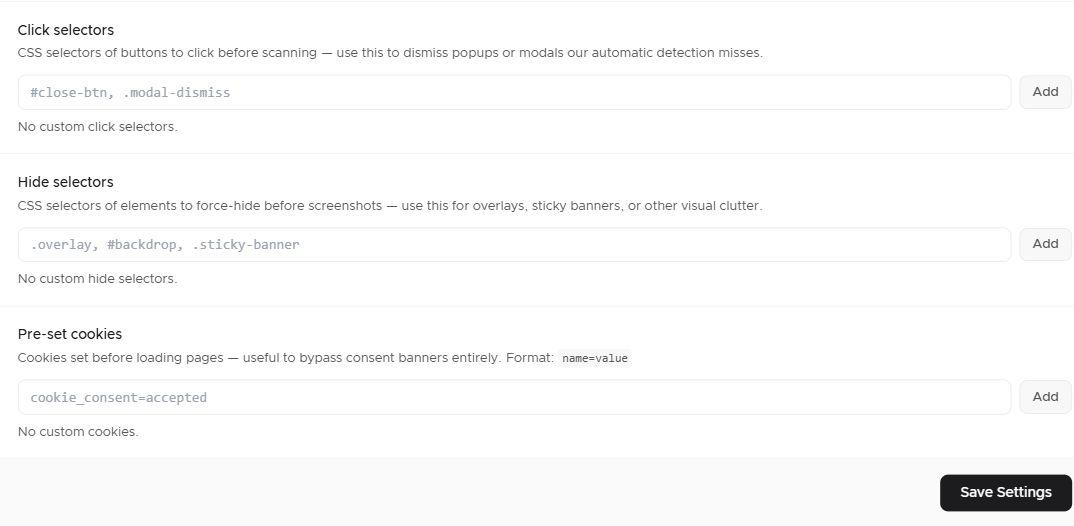
Advanced controls can click selected elements, hide elements from scan screenshots or set cookies before loading pages. Use these only for a defined discovery scenario. Hiding a banner does not save a consent choice.
5. Save and compare
Save Settings, run an available scan and compare the completed pages and results. See Review your scan history.
Technical guides
Screenshots are edited, anonymized examples. Use your own website, banner and Passiro script.