
Understand detected cookies and trackers
See which cookies and third-party services Passiro found during a scan.
1. Open Cookies Detected
Select your website, then Cookies Detected. Review the category totals at the top.
2. Filter the cookie list
Use All, Necessary, Analytics, Marketing, Functional or Unknown. The table shows each cookie's name, domain, category, provider and expiry, plus security and party information. Scroll the table sideways on smaller screens.
3. Review trackers separately
Find Detected Trackers & Third-Party Scripts. Filter by category and open a vendor row to inspect its detected requests.
Unknown means a cookie was not assigned a recognized category. Identify its purpose with your developer before deciding how to handle it. A scan reports what was detected on the pages it visited; it does not prove that every page or visitor journey was checked.
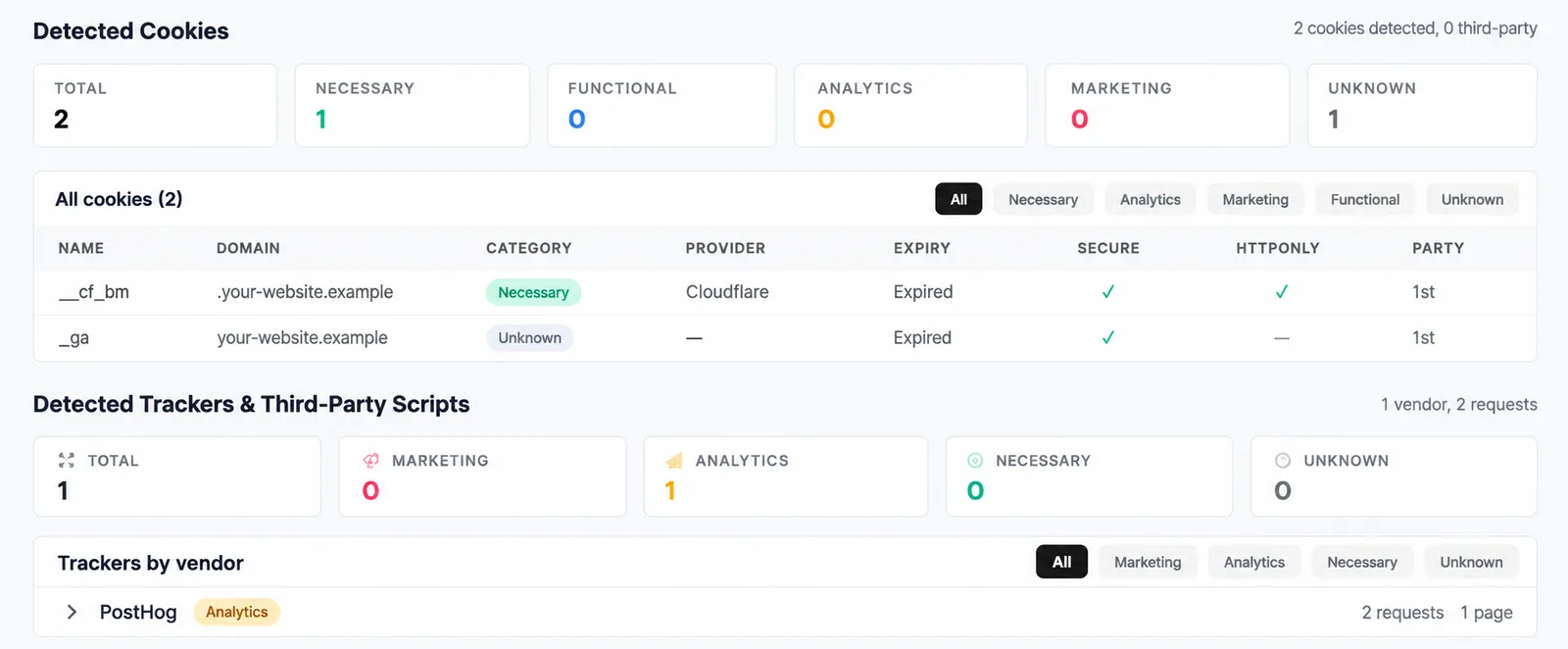
Screenshots are edited, anonymized examples. Use your own website, banner and Passiro script.