
Use advanced crawler controls for a defined discovery scenario
Use click selectors, hide selectors and pre-set cookies for one defined scan scenario, and compare the result with the previous comparable scan.
Open Scanning → Crawler Settings. Start by recording the current page scope, ignored paths, timeout and extra wait. Change one relevant setting at a time so results remain comparable.
Click selectors identifies elements the crawler should click before scanning. Use specific CSS selectors for safe controls in a test environment. Do not target purchase, delete, account-change or form-submission controls. Hide selectors hides selected visual elements from scan screenshots; hiding a consent dialog does not submit a consent choice. Pre-set cookies sets name=value pairs before loading pages and changes the state being scanned.
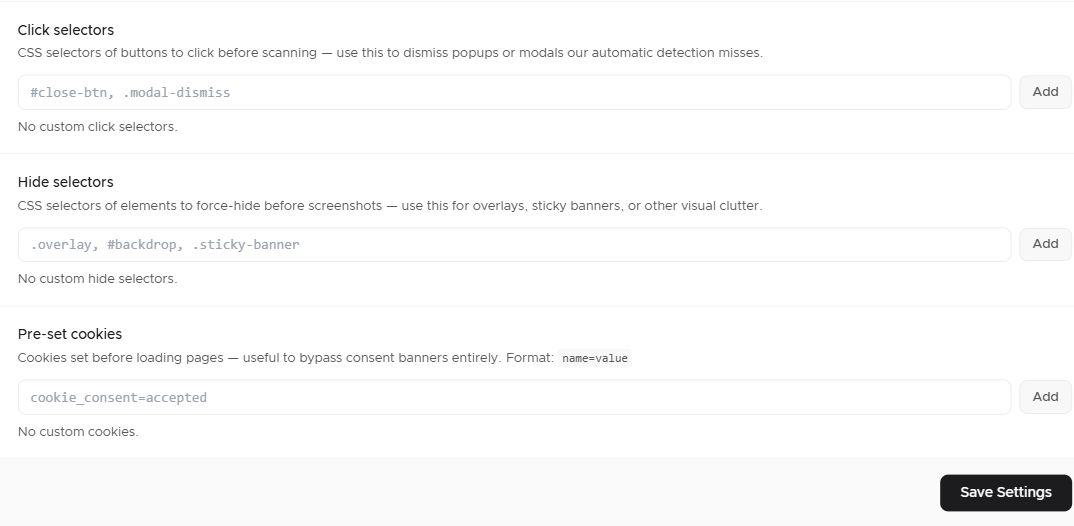
Never put an authentication token or a real personal-session cookie into a documentation example. Do not invent a consent-cookie name and assume that it grants consent; use the actual supported behavior for the scenario you intend to discover.
Save Settings and run a scan when your plan allows it. Compare reached pages, duration, cookies and trackers against the previous comparable scan. Remove temporary discovery settings when they are no longer needed.
Acceptance: the scan scenario is documented and reproducible. A scan performed after consent or with pre-set cookies is an inventory test, not proof that optional storage is blocked before consent.
Related guides
Screenshots are edited, anonymized examples. Use your own website, banner and Passiro script.