


Troubleshoot missing or incomplete scan results
Check the scan scope and loading behavior before assuming a cookie or tracker is absent.
1. Check the latest scan
Open Scan History and check whether the relevant scan completed and how many pages it reached.
2. Review the scan settings
Review the selected site address. In Scanning → Crawler Settings, check Pages per scan, Ignored paths, Scan timeout and Extra wait after page load.
3. Check that pages are reachable
Confirm that important pages are reachable without an unsupported login or access challenge. Passiro identifies its crawler as PassiroCrawler/1.0.
4. Adjust only what is missing
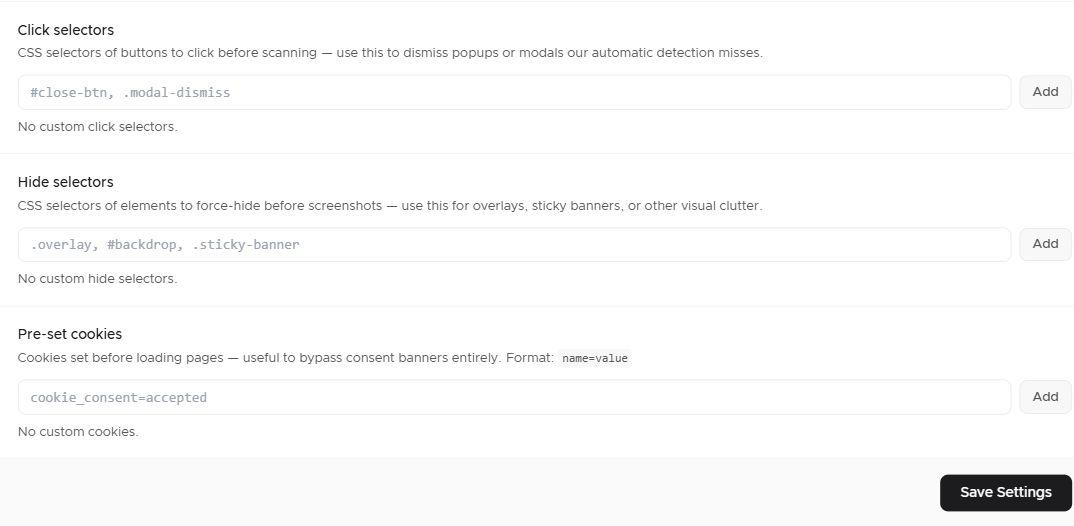
For dynamic pages, adjust only the setting relevant to the missing content and save it. Review advanced click or pre-set-cookie settings if you are intentionally scanning a particular state.
5. Scan again and compare
Run another scan when available and compare the same scope. Whether you can start one yourself depends on the on-demand scans in your plan; otherwise compare with the next automatic scan.
A missing cookie can require a specific user journey; do not treat one incomplete scan as proof that the cookie is absent.
Technical guides
Screenshots are edited, anonymized examples. Use your own website, banner and Passiro script.