


Does your “Reject all” button work? A practical cookie-banner test
Clicking “Reject all” is the start of a test, not the result. The useful question is what the website does next.
To test a cookie banner, compare browser storage, outgoing requests and consent signals across a fixed sequence of choices. Write down what you expect first, then record what you observe, so a technical colleague can see exactly where the two differ.
This guide assumes a European opt-in setup, where optional cookies and tags wait for consent. If you use Advanced Consent Mode, some Google requests are expected while consent is denied; our Basic vs Advanced guide explains the difference.
Write down the expected behaviour first
List the tools on the site: analytics, advertising pixels, embedded video, chat, booking widgets and any server-side destinations. For each, note its purpose and the choice that should control it.
Keep the test small enough to run again. Use the same three pages throughout: a landing page, a product or service page and the page where a visitor submits a form or completes an order. A clean home page does not tell you what happens at checkout.
Use test data only, such as a test email address and a test order or form entry. Real customer details do not belong in screenshots or network exports.
Set up the browser before you start
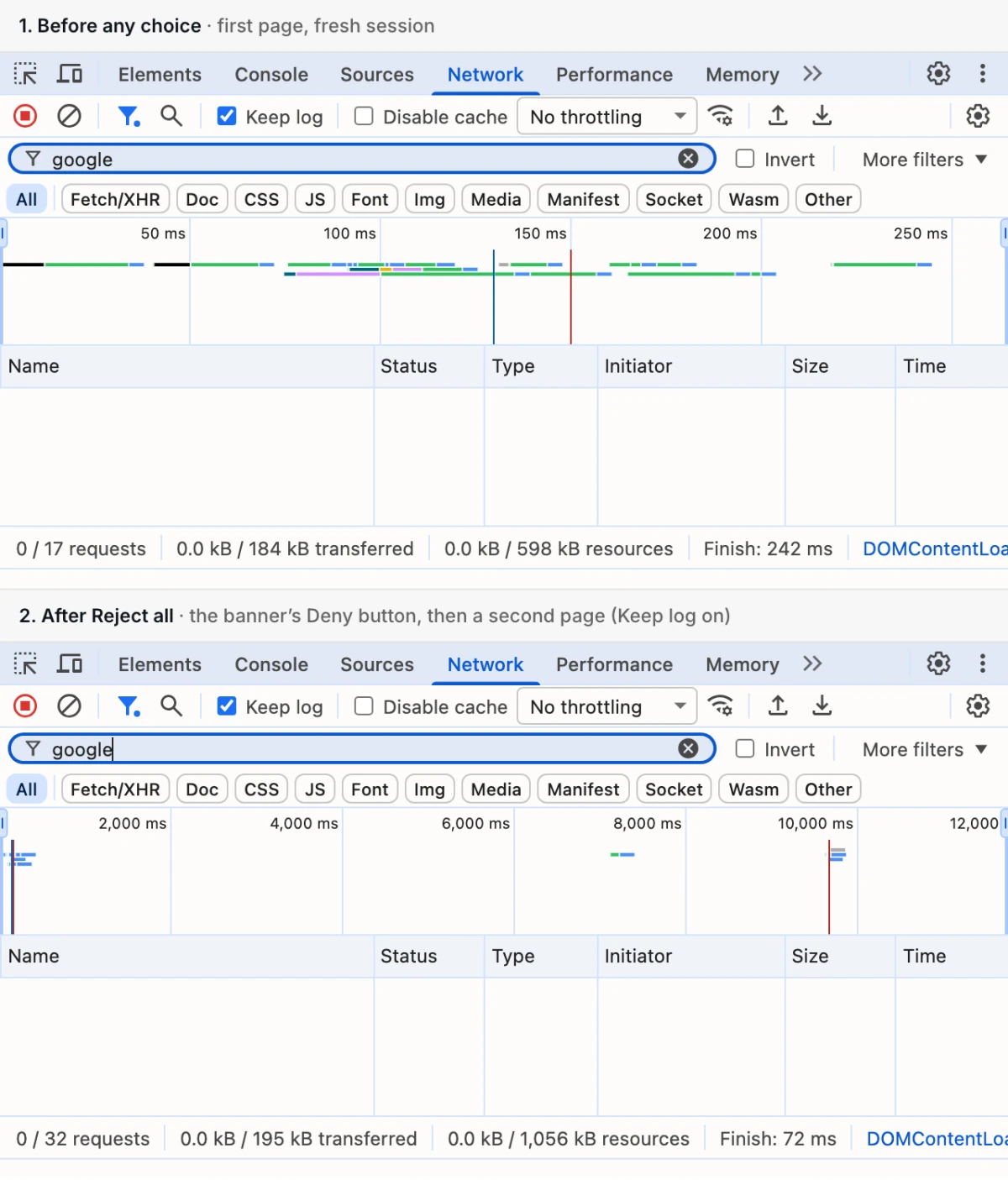
Open Chrome DevTools before loading the page. In the Network panel, tick Preserve log so requests stay listed when you move between pages, and use the filter box to look at one tool’s domain at a time. Selecting a request and opening its Payload tab shows the parameters it sent.
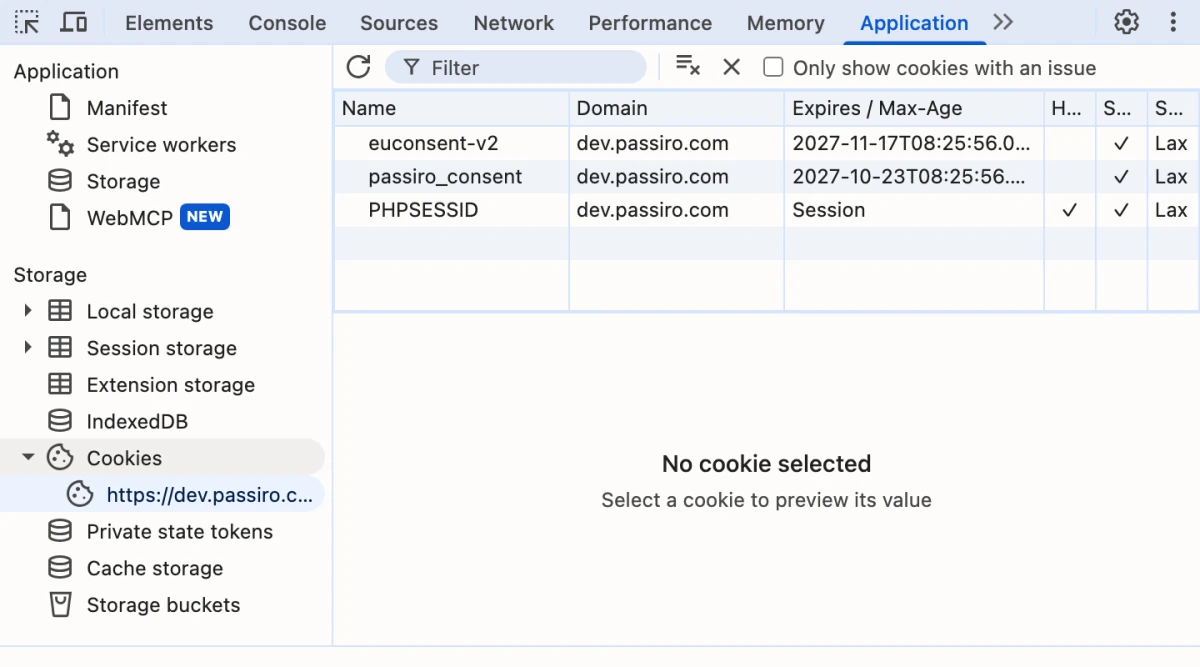
In the Application panel, review cookies and local storage for the site and for third-party domains. Note names, domains and timing; avoid copying cookie values, which can contain identifiers.
Chrome documents how to inspect network activity, keep requests across page loads and view cookies. Use the views together: an empty cookie list does not prove that no data left the browser.
For Google tags, use Tag Assistant’s consent checks to compare the default consent state with the update after each choice. In a Basic setup, Tag Assistant may only connect after you accept, because the Google tag is blocked until then. It covers Google consent signals only, so keep checking other tools in the Network panel.
Test from the region your opt-in banner targets, and note whether you used a VPN. Use a browser profile without unrelated extensions, which can add or block requests of their own.
Fresh session or the same session?
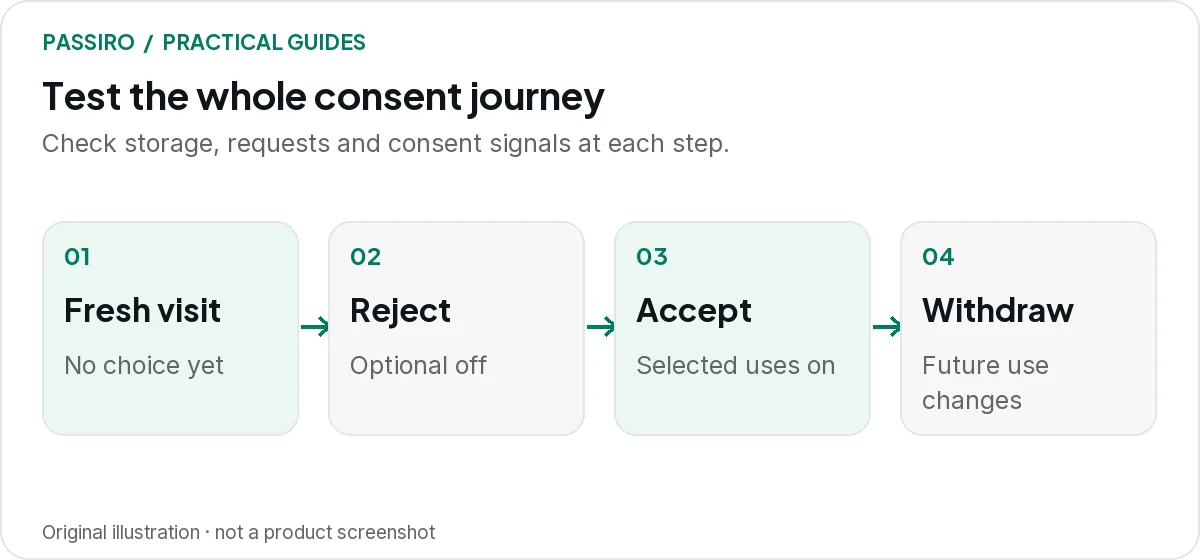
Start every first-choice journey in a fresh session: before any choice, Reject all, analytics only and Accept all. Otherwise a choice saved in an earlier run decides what you see.
A private window works if you close all private windows between journeys: in Chrome, private windows share one session while any of them is open. You can also clear the site’s stored data with the Clear site data button in the Storage view of the DevTools Application panel, which may sign you out of the site.
Continue in the same session only when you are testing a change to an existing choice: withdrawal and the revisit. Accept first, then reopen cookie settings in the same window and change the choice. In a private window, keep the window open, because closing every private window deletes the saved choice.
Run the test sequence
Run each row on the same three pages and write what you observe next to the expected result. The first four rows start in a fresh session; the last two continue in the same session.
| Action | Expected result | Signs of a problem |
|---|---|---|
| Before any choice: load the landing page (fresh session) | Expected resultBanner appears. Only necessary storage. Google consent defaults are denied. | Signs of a problemAnalytics or ad cookies, optional tags sending data, or no consent default. |
| Reject all, then open a second page (fresh session) | Expected resultOptional tools stay blocked on every page. The Google update stays denied. | Signs of a problemA tool starts after a page change, or a pixel outside your tag manager still fires. |
| Analytics only: allow analytics, leave marketing off (fresh session) | Expected resultAnalytics runs and analytics_storage is granted. Ad tags stay blocked; ad signals stay denied. | Signs of a problemAd pixels fire, or every tag starts as soon as any choice is saved. |
| Accept all, then complete a test conversion (fresh session) | Expected resultAllowed tools run. The conversion fires once, with the right value and currency. | Signs of a problemMissing tags, a duplicate conversion or a wrong value. |
| Withdraw: reopen cookie settings, switch optional categories off, save and reload (same session) | Expected resultSettings are easy to reopen. Optional tools stop sending new data; the Google update shows denied. | Signs of a problemNo visible way back, the old choice returns, or tags keep sending data. |
| Revisit: open the site again in a new tab of the same window (same session) | Expected resultNo new banner. The saved choice still applies, and the settings button is available. | Signs of a problemThe banner reappears on every visit, or tags act as if the visitor accepted. |
The signal names assume a common mapping: an analytics category controls analytics_storage, and a marketing category controls ad_storage, ad_user_data and ad_personalization. Check your own mapping before you judge a result.
When you check withdrawal, look at existing cookies separately. Stopping future requests and removing previously stored information are different operations, and a website cannot simply delete cookies set by another domain.
A request is not automatically a failure
The website needs requests to work: page files, fonts, payment providers and the consent tool itself. Judge each request by the tool that sent it, its purpose and what it carries, not by the fact that it exists.
With Advanced Consent Mode, Google tags load before a choice and send measurements without cookies while consent is denied. Google’s consent mode overview describes what these pings contain, such as the consent state, a timestamp and the referrer. In a Basic setup, the same requests before acceptance would be a sign of a problem.
When a request looks unexpected, open its Payload tab and note the destination, the page and any value that looks like an identifier. Then ask the person responsible for that tool whether it matches the configuration.
Three faults to look for
Illustrative example: an analytics tag behaves as intended, but a remarketing pixel still sends a page-view request after Reject all. The pixel was installed in the website theme, while the consent rules were configured only in Google Tag Manager. The fix is to control the theme-installed pixel too; changing the button label will not solve it.
Another common mistake is one broad “accepted” event that starts every tag. The analytics-only row exposes it: granular controls in the banner help only if the implementation keeps the categories apart.
With full acceptance, watch for a conversion that fires twice: once on the consent update and again on the next page event.
Keep an actionable record
Record every row, not just the failures. For each failure, add the affected tool, where it is installed and who will fix it. Leave personal data out of screenshots and network exports.
Cookie-banner test record
Website and test pages:
Test date, browser and device:
Test region and banner language:
Consent setup (Basic or Advanced Consent Mode):
Row tested and session (fresh or same):
Expected result:
Observed result:
Affected tool and installation location:
Evidence (screenshot or export, without personal data):
Owner and retest date:
Repeat the affected rows after a repair. Add this test to launches that introduce a new plugin, pixel, checkout or chat tool. For a broader handover process, use the agency launch checklist.
Two quick questions
Does a cookie scan replace this test?
No. A scan helps find cookies and trackers on the pages and in the conditions it visits. Interactive journeys can reveal additional behaviour. See cookie scanning vs script blocking.
Can we run the test on a staging site first?
Yes, as a rehearsal. The staging hostname must be allowed in your consent setup; in Passiro, check Allowed Domains (see testing on a staging site). Repeat the key rows on the live site after release, because a staging pass does not verify production.