
Configure Google Consent Mode
Choose how Passiro communicates consent choices to your Google tagging setup.
1. Open Behavior
Go to Implementation and expand Behavior. Find Google Consent Mode.
2. Review the mode
When enabled, choose Basic or Advanced. With auto-blocking on, Basic keeps tags blocked before consent. Advanced allows Google's tag loader to support cookieless pings before consent while other supported trackers remain blocked.
3. Save the intended setup
Review the Resulting behavior before consent table, including the Auto-block setting. Click Save after making changes.
4. Verify and test
Run Verify Installation, then check your Google tags with your website or analytics specialist. Test before consent, after rejection and after acceptance. Confirm that consent updates reach the tags you actually use.
Disabling Google Consent Mode stops its consent signals. Auto-blocking is a separate setting. Choose the combination that matches your requirements; Advanced mode can send data before a visitor accepts.
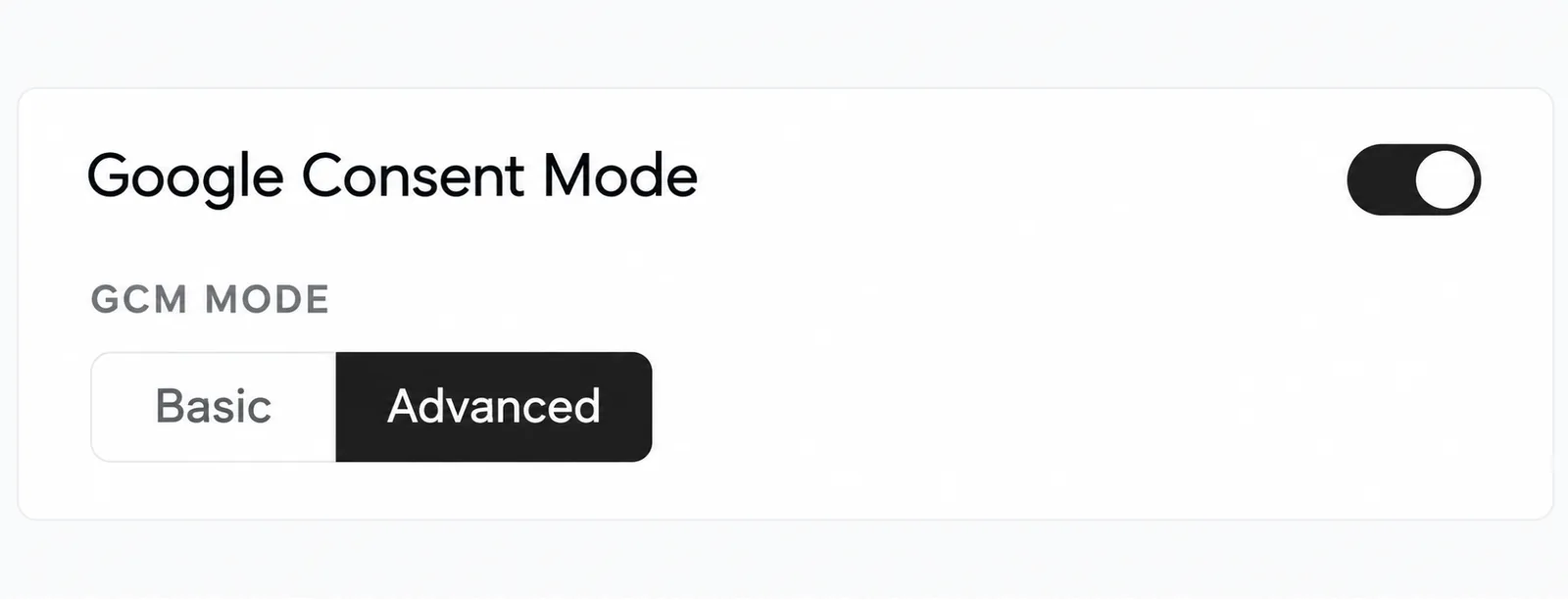
Screenshots are edited, anonymized examples. Use your own website, banner and Passiro script.